I get asked a lot about the software and apps I use.
The truth is, I’m a writer. I don’t need a lot of fancy kit. A pen and paper do the job perfectly well. But software and good tools can make life easier.
So this is a list of things I use regularly as a writer, a coach and a small business owner. All of these are tools I use regularly. Some of the links here are affiliate links, which means I get a tiny payment to help with the running of this site if you choose to buy.
But please don’t rush into buying anything on my recommendation alone. It’s really important to note that there are very few one-size-fits-all solutions in life and work. So with expensive software, always test it with a free trial before investing.
The best tools are always the ones you actually use.
And that’s a matter of personal taste, We’re all wired differently. My bias is towards software with a clean, uncluttered interface; yours might be completely different.
If it doesn’t work for you, note what you don’t like, and any features you need that don’t seem to be there. Then look around for similar tools until you find one with less of the irritating features, more of what you need.
Finally, always monitor your use of any technology. Often, there are hidden costs that only emerge after you’ve used them for a while. Perhaps a new social media channel gets you a few new fans – but it that worth it if it also sucks up hours of your time, and makes you feel bad about yourself?
In my quarterly review, I ask these questions of all of my tools and software:
- Is it making your life easier or harder?
- Does it create problems you hadn’t anticipated?
- Is it still working for you – or are you now working for it?
Computers
I have never used a PC. I’m Apple to my core and use an iMac, a MacBook, iPad and iPhone and Apple watch. But I haven’t bought a new iPhone for years. When I need an upgrade, I buy a reconditioned one and I only pay £10 a month for my calls and data.
Much as it pains me to say it, my most recent iMac – forced on me because my 2019 model had slowed to such a degree that it felt like working on a slo-mo sports replay – doesn’t feel better than the old one. Sure, it’s faster. But the screen is smaller and less adjustable, the housing feels cheap and it’s the first Mac I’ve ever owned that I don’t love unconditionally.
If you have a Mac, take a look at Alfred, a simple productivity app that improves the Mac OS. For reasonable a one-off fee (£34 last time I looked), the power pack adds all sorts of extra keyboard shortcuts, a huge clipboard and lots of other useful features that save me time, every day.
Website
Nate Hoffelder, aka ‘the author website guy’ does the maintenance and upkeep on my site. He’s the expert, not me, and I’ve learned to trust his recommendations.
It’s a WordPress site, and designed using Mai theme. It’s hosted by Peopleshost, which I chose because Nate recommended it. I buy domain names from Namecheap, which is easy to use and lives up to its name.
Email/newsletters
I currently use Kit to send out newsletters to my mailing list. Before that, I used Mailerlite, which is easy and fairly intuitive to use (unlike MailChimp, which I tried first and never got to grips with).
Making It is my weekly newsletter for creative professionals. As it grew, I needed the more sophisticated features Kit provides. It has brilliant tech support (which I use constantly), useful webinars, and very clear how-to videos.
There’s a free version for up to 1000 subscribers, but if your list is bigger than that or you want to try the more advanced features, use my affiliate link to get a free trial.
SubStack has done a very good job of making us feel they’re the only choice for paid newsletters, but this isn’t true. Kit makes it easy to add a paid tier or sell digital products, as do Ghost and Beehiiv. And they all take a smaller cut of your profits than SubStack.
I’m on a mission to support as many creatives as I can, so I’ve chosen to keep my newsletter free. If you’re interested in my thoughts on creative process, the fears and blocks that hold us back, and how to sell more work or build an audience for what you do, sign up here.
Backups
I’m paranoid about this, but having lost work in the past from a Mac that failed suddenly and on a laptop that got stolen from the car, I’m happy to go OTT. I use Backblaze for cloud-based backups: It’s favoured by many of my photographer clients because it offers unlimited storage for each device, and for any attached peripherals.
Every few months, I do a separate complete backup onto a portable hard drive that I leave with a friend. I have a backup of his that I store at home. This way, even in the event of a catastrophic fire, robbery or natural disaster, we will still have our archived work.
Writing
It’s important to say that you don’t need fancy kit to write. The only tools you really need to start are a pen and paper.
There’s no need to get too fussy about this, though most writers have favourites. My pens are always Pilot V7. My favourite notebook is the Leuchtturm 1917 – lovely thick paper, with a choice of plain, lined, square or dotted; numbered pages, making it easy to index important bits. I find the A5 size big enough to write freely in, but not too heavy to carry.
I’ve written in Microsoft Word for decades, but I rarely open it now. All of my long-form writing is now done in Scrivener. It’s not intuitive and most users find it a steep learning curve. But once you have it set up to suit your preferred way of working, you realise the joy of using software made by writers for writers.
As I get older I find I get wrist pain after long typing sessions, and my body gets stiff if I sit for long periods. The solution? WisprFlow makes it easy to dictate your words, and it’s astonishingly accurate. I can now walk while speaking into my phone, or give my wrists a rest by pressing a single key on my desktop computer.
To format my self-published books, I use Vellum. It’s pricey but helps you produce a beautiful, professional-looking book very easily. You can play with it for free, and only have to decide whether to pay for it once you output your book files.
Organising information
Note-taking: I prefer to write blog posts, newsletters and other shorter pieces in my note-taking app, Mem.ai. I’m easily distracted, so I like how simple and clean it is, how searchable, and how it synchs across all my devices.
Best of all, it surfaces relevant references and related information from my notes as I write. Often a great quote, report or example I’d forgotten I even had pops up in the side panel, ready to use.
Mem.ai houses my second brain, my reading notes, templates, checklists, life admin. It’s the only AI I’ve used that doesn’t feel intrusive. By suggesting past notes that might be useful in an optional side-panel, it helps me think rather than trying to replace reading, writing and thinking. Try it for free, but if you do you decide to upgrade to the paid version, use my affiliate link and the coupon code CREATIVELIFE for a 20% discount.
I’ve been experimenting with speaking words sometimes, instead of typing them. Which is particularly useful if I have something I want to get down and I only have my phone with me. Wispr Flow is the best software I’ve found for this so far: very simple to use, and surprisingly accurate. (Especially the paid version, which seems to be more powerful.)
Read-later app: I use Readwise to collect web pages, articles, podcasts, videos and anything else I want to read, listen to or watch. This saves endless open tabs and lists. I then put aside time each week to dip into what I’ve saved.
Task manager: I’ve tried every to-do list/task manager under the sun and Things 3 is the one I’ve stuck with. Again, it synchs over all of my Apple devices, captures tasks from emails easily, is uncluttered and easy to use.
Other software/apps
For scheduling and bookings, I use Book Like A Boss. It’s not perfect, but it’s the best one I’ve tried.
It synchs up to my personal calendar seamlessly. Clients can pay for a session and book a time that suits them – and also change that, if they ever need to, without needing to play endless email ping-pong with me. I use it for courses and workshops as well as one-to-one coaching, and it saves me hours of admin, every month.
It’s fairly expensive, though, so best for people who conduct most of their business online and have multiple types of sessions/appointments to juggle. If you just want a basic scheduling tool, there are lots of good, free or low-cost ones such as Calendly.
Spreadsheets: I’ve always used Exel, but like Word, it has become increasingly bloated with features and difficult to use. I recently moved to Airtable, and won’t go back. It’s clean, easy and a great way of collecting data and displaying it in various ways. All my blog posts and their urls now live in Airtable, all the courses and workshops I’ve bought. I’m using the free version, and so far it’s perfectly adequate for my needs.
All my social posts are designed in Canva and scheduled in Buffer (both have generous free versions as well as paid plans for heavier users). Stock photos come mainly from DepositPhotos.
For taking online payments, I prefer Stripe – the dashboard is very clean and easy to navigate, and their fee for processing the payment is slightly lower. But some buyers feel more comfortable with PayPal, so I offer that too.
Analogue tools
Most of these are in this post on essential kit for working from home.
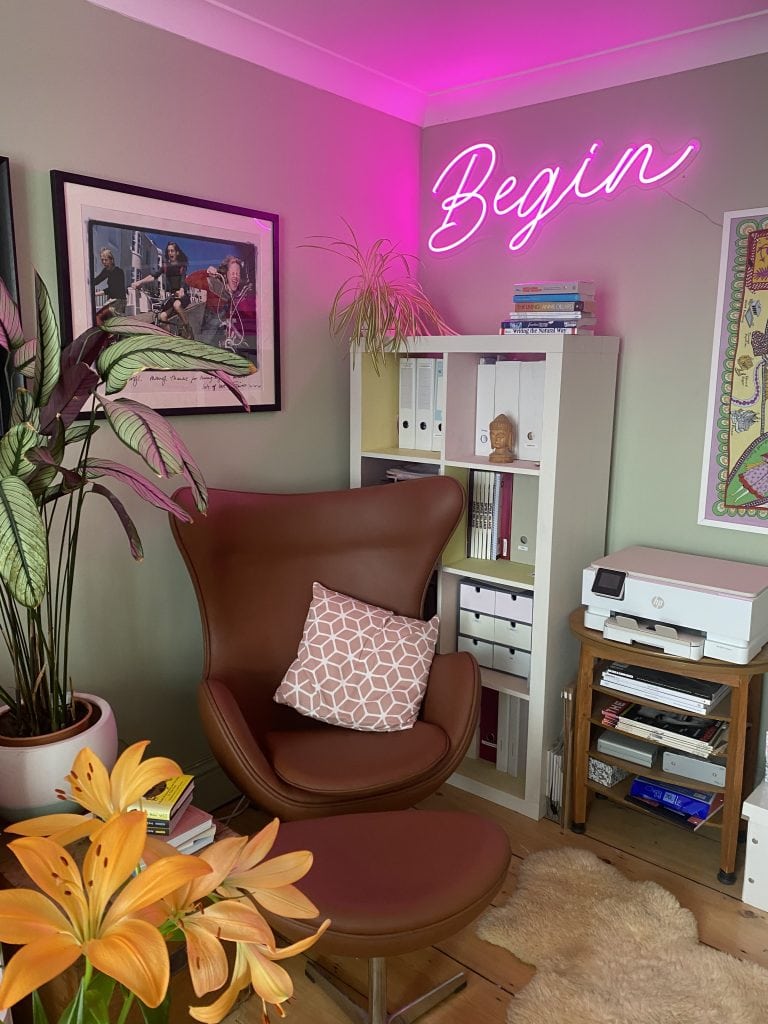
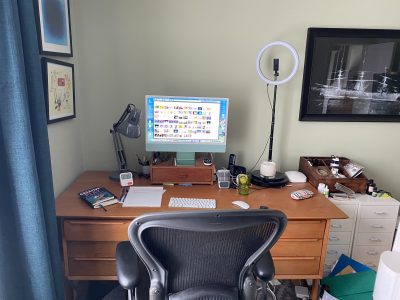
PS If you’re wondering about the artworks, top pic you can see a print by Anish Kapoor and another by Jon Hendrix, and one of Lauren Bevan’s brilliant series Ghost Ship. This pic has a photograph by Elaine Constantine, and a framed Grayson Perry scarf just peeping into the edge above my ugly printer. The neon sign was a birthday present from my husband.